Showing posts with label Tricks. Show all posts

How to enable disable firewall in Ubuntu

Ubuntu comes with a firewall configuration tool called UFW (Uncomplicated firewall). UFW is a convenient interface for managing firewall rules iptables, and its main goal is to simplify the management of firewall rules or, as the name implies, not complicate. It is highly recommended that you leave the firewall turned on. However, in some situations, such as testing, you may need to stop or disable firewall.


In this article, we will show you how to enable/ disable the UFW firewall. Before starting make sure you are logged in as a user with privileges sudo.

Checking the status of the firewall

To view the current status of the UFW firewall, use the ufw status command:
sudo ufw status
UFW firewall is disabled by default. If you have never activated UFW before, the output will show status as Inactive , Otherwise, if the firewall is turned on, you will see Active

Disabling Firewall

If you disable the firewall due to connectivity issues or have problems configuring the firewall, check out our guide on how to configure the firewall with UFW on Ubuntu. To disable the UFW firewall on your system Ubuntu use the ufw disable command:
sudo ufw disable
The output will look like this:
Firewall stopped and disabled on system startup
The above command will stop and disable the firewall, but will not remove the firewall rules. The next time you turn on the firewall, the same rules will be loaded.

Reset Firewall Rules

If you want to disable the firewall and remove all firewall rules, use the ufw reset command:
sudo ufw reset

Enabling the Firewall

Before turning on the firewall, make sure that the SSH port is open for connection.
To enable the firewall, run:
sudo ufw enable
Most UFW commands are intuitive and easy to remember. For example, ufw status shows the status of the firewall, and ufw disable disables the firewall.

Disable Bluetooth In Windows 10 - How To?

In case you don’t  use Bluetooth on your laptops or desktops it is better to disable it for some performance gain. Anything running unused is definitely eating up system recourses whether it is RAM or processing power. Here are very simple steps by which you can disable Windows 10 Bluetooth Radio.

Steps to disable Bluetooth on Windows 10

  • Click on start button and type “Device Manager”. This will bring up device manager window.
  • You should easily  be able locate Bluetooth device as mention in picture below.
  • Click to “Bluetooth” node
  • Right click on the Device to bring submenu
  • Click disable menu item. A dialog will be displayed saying “Disabling this device will cause it to stop functioning. Do you really want to disable it?”. Select Yes button and device  will be disabled.
  • You can re-enable it by again going to same submenu

diable bluetooth on windows-10

After disabling Bluetooth you should be able to see its status something like below ( device name may vary based on your laptop or desktop manufacturer).

enable bluetooth windows 10

Coolest job advertisement from Flipkart - must see

While crunching Flipkart data suddenly what I saw was really amazing. Never thought some kind of job advertisement can be done that way.

flipkart-job-ad

Not sure whether I can be a flipster or not, but you can try your luck at : http://www.flipkartcareers.com/

Reduce Memory Usage In Google Chrome - How to ?

Being a heavy Internet user I use Google chrome a lot but when number of tabs starts growing it starts slowing down system. A slow system definitely impacts your productivity. If your job is of similar nature and you spend lots of time surfing Internet here are few tips which can help you to control Google Chrome.

memory

Step 1 –  Check memory usage and their source

Most of the memory is eaten either by a opened tab or by Installed chrome add-ins.  Type “chrome://memory-redirect/” in address bar and you will be able to see the summary of memory usage by various plugins or opened websites. As a rule if you are not using any plugin and it is installed into browser you should either remove it of disable it if is used time to time or once in a while.

memory-usage

To disable chrome plugin go to menu –> tools –> Extensions

Here you will find all the chrome plugins installed. Just remove of disable plugins which as per your usage or the amount of the memory consumption you have seen in previous memory usage page.

Step 2 – Flush memory by using plugin (OneTab)

onetab

As such there is no such built in facility to flush memory in Google Chrome but this can be achieved by using one excellent plugin named OneTab. As claimed by plugin writers it can save up to 95% of memory usage and removes the clutter as well. What this plugin does is it simply closes all the opened tabs and displays one single tab where you can find links to all opened pages in Google Chrome. To re-open previously opened tab just click on the link and it will be displayed back in a new tab. Whenever you find that number of tabs have become unmanageable just click on the plugin icon.  The number of time you click OneTab icon it will display one tab page and will also group the links so that you can easily be able to find them.

Download OneTab – plugin to reduce Google Chrome Memory Usage

Unlink SMS from Google Hangout - How to ?

After a recent Google Hangout  update you will be shown a message to integrate “SMS” messages with hangout saying :

“Hangout now lets you text message (SMS).
Turn on SMS and see all your conversation in one place.”

google hangout

This sounds to be a brilliant idea as we believe in Google products and their quality. Though idea of integrating SMS is good but it doesn’t work well. It is not as smooth as the built in SMS application.

How to disable SMS integration ?

In case you have integrated SMS with hangout and now want to revert back just follow the below steps.

  • Launch Hangouts APP
  • Goto settings menu item. To do that make sure you are at Google Hangout home screen. Press the menu button ( this may vary depending upon your phone model.
  • Now, under General section tap to SMS. This will take you to another screen
  • Uncheck the checkmark where Turn on SMS is written.

Above steps can be checked in image below :

google hangout sms

In case you want to re-enable the integration. Just follow the same steps above and Check Turn on SMS.

Class 4 Vs Class 6 Vs 10 in Memory Cards - What do they mean?

Have you ever thought about what is the purpose of class 2, 4, 6, or 10 in memory cards? The letter C next to the numbers - it is Class. This designation is used to describe the speed rating of the memory card,  standardized by the Secure Digital Association (SDA). Class describes the lowest possible write speed to the memory card in megabytes per second. For example, the memory card SDHC Class 10 maintains a minimum write speed of 10 MB / s when used with SDHC-enabled device. The higher the class card, the faster it responds to user actions.

SDHC Class 4 Vs Class 6 Vs 10

transcend-sd-64gb-class-10

Choose depending on the tasks

Today, the majority of digital high-tech devices such as digital cameras and digital camcorders, as well as HDTV, GPS-navigators, digital photo frame, equipped with a slot SDHC. SDHC memory cards are divided into different classes specifically to each user can choose exactly what he needs.

Class 10 - for digital SLR cameras a hi-end

If you are a professional photographer, you need first of all high performance, and hence card SDHC Class 10 - what you need. These cards are ideal for use with advanced digital SLR cameras that store images in a "heavy" file format RAW. Class 10 cards deliver unprecedented data rates, which not only eliminates the latency when recording video in Full HD, but also allows the use of high-speed consecutive shooting, which is useful when shooting sports and fast-moving objects.

Class 6 - for a mid-level digital cameras

If you are a photography enthusiast and you have a digital SLR camera is an entry-level or advanced compact, then we recommend you memory card SDHC Class 6. They provide excellent speed for a reasonable price. These memory cards allow mid-level interest in photography while paying less money.

Class 4/Class 2 - for compact cameras and electronics

For beginners and amateur photographers, whose cameras feature high-speed consecutive shooting is not necessary in the first place, we recommend memory card SDHC Class 4. These cards are cheaper than the card Class 6 and Class 10, but also boast a high level of quality. If you are looking for a memory card for everyday shooting, the Class 4 is a balanced choice.
Memory Card Class 2 SDHC are not as fast, but it is the cheapest. Thanks to the high capacity and performance is quite acceptable, Class 2 cards are a cost-effective solution for expanding the memory capacity electronics, such as digital photo frames, televisions, printers and HD-media players as well as laptops.
Class
Minimum Speed
2
2MB/s
4
4MB/s
6
6MB/s
8
8MB/s
10
10MB/s
If you are using Memory cards for alternate or temporary storage same logic applies here as well. On Windows 7 and above versions these can be used to achieve high performance using readyboost.


Clear DNS Cache On Windows 7 - How To ?

First, a little about why do you need to reset the cache DNS?

During call to DNS servers, the system saves the results on your local drive hard drive. This is done so that on consecutive calls information can be found locally, rather  finding it each time form DNS servers. This process is called caching, and storage of cached data cache, respectively.

DNS cache entry stores a matching domain names to their IP addresses. Clearing DNS cache forces a system to re-query domain information from the DNS servers.

Now  how to clear the DNS cache ?

Run the Windows command prompt cmd.exe . To do this, go to the Start menu >> All Programs >>  Accessories  >> Command Prompt . 

If UAC is enabled, then run the command prompt as an administrator .  To do this right click on the item Command Prompt  and select Run as administrator .

image

In the command window type the command ipconfig /flushdns  and press the ENTER key . This should clear the DNS cache from your system.

image

To see a list of all cached DNS records you can use command ipconfig /displaydns

Options & Settings in Skype for Windows 8 - Where to find ?

It was really horrible to see that no options menu is available on Skype for Windows 8. Though Skype for Windows is pretty easy to use and multi screen interface is enjoyable. Finally I had to Google to find out missing options and settings menu in Skype.

Steps to locate Options & Settings menu in Skype ?

Finding options and settings is like finding an Easter egg. Follow  below steps  to locate it:

  • Start Skype and go to the main screen.
  • Take your mouse pointer to extreme top right section of the screen
  • This will display a vertical bar at the right side of screen now click settings icon here
  • Now click on options menu item.
  • This will finally take you to Options and settings screen. From here you will be able to manage Audio, Video, Call and privacy related settings.

Above steps can  also be checked in below screens :

windows-8-skype-setting

windows-8-skype-setting2

windows-8-skype-setting3

Insert Square Root Symbol in MS-Word 2007 2010 or 2013

How you can insert Square Root Symbol in MS-Word ?

When writing technical texts sometimes you may need to use mathematical symbols like square root. It is fairly standard features of MS-Word. We just need to choose the most suitable for the specific option. Try below steps ( also mentioned in image below)

  • Start MS Word
  • Go to insert tab on the ribbon
  • Click on the Equation button. This will display equation related items.
  • To directly jump to equation tab you can use shortcut Alt + =
  • Now select and click your desired symbol square root or cube root or quad root or any other you wish to add into the document.

This trick applies almost all versions of Microsoft word starting from 2007 to 2010 and 2013. 

square root ms word

ms word square root

Windows 8 - show my computer on desktop

In the new Microsoft Windows 8 operating system  you will not find the familiar Start button, and therefore can’t get access my computer easily. While it can only be reached through the wire, and then you will have to make a few extra body movements and climb up the directories.

windows-8-my-computer-icons-on-desktop

To get your favorite My Computer shortcut on the desktop, as well as other icons, just right-click on the desktop and select Personalize (Personalization). In the window that opens, find the link - Change Desktop icons (Change desktop icons.) Now set the check mark next to those labels that you want to see on the desktop, confirm with OK .

That’s it.

Enable Telenet in Windows 8

Since Windows Vista Telenet client is not coming preinstalled with newer OS’s including Windows 8. Probably the reason is the security as these communications are unencrypted and sniffers can intercept the information on the network.

image

If you still need to use Telenet you can do it very easily by just executing one command at command prompt. Open command prompt in Administrator mode and execute below command :

pkgmgr.exe / iu:"TelnetClient"

You won’t get any notification after the command execution completes but that is also and indication of successful command execution though it shouldn't.

Command to disable hibernation in Windows 10/ Windows 7

In Hibernate mode all the information that is dealing in RAM is saved to the hard drive and the computer turns off completely. When turning on the PC again, all applications are restored to the previous state before hibernation.
You might want to turn Hibernation Off may be because of low disk space of something else, here is how this can be done :
Go to Start -> All Programs -> Accessories-> right click Command Prompt and then select Run as administrator.
Windows 7 Hibernate Command
This will display the command window. Now inside command window or DOS window just type :

powercfg.exe /hibernate off

and press enter. This command will disable hibernation on your system. To re enable hibernation you can use command:

powercfg.exe /hibernate on

Upgrade China Tablet Apad m300 to Android 2.1 - How to ?

By chance I stumbled into a forum post where someone was looking for an upgrade to his m300 tablet to newer version of Android and suddenly I remembered that my m300 also requires an update as it is running on a very old version of Android 1.6 eh.. So I Googled here and there and finally able to find some working firmware updates for Apad m300. Probably the manufacturer has stopped supporting this device, you won’t be able to find working download links. Few which I was able to locate is available at 4shared.com. Do a search for “M003_2.1_128” and download the file. File which I downloaded was M003_2.1_128.rar.

Upgrading firmware is pretty easy, just follow below steps :

  • Step1 – Make one SDCard ready which should be FAT32 formatted.
  • Step2 – Extract the downloaded archive (.zip or .rar) to your PC . You will find one script folder inside it.
  • Step4 – Copy the extracted script folder at the root of the SDCard.
  • Step5 – Insert the SDCard into your Apad m300 device and power it on.

You will notice that Android upgrade has started. A similar screen to below snap will be shown to your device. Just wait for few minutes and let installer complete its job. After it is done you will be asked to take of SDCard out, just remove it and power on your device again. WOW .. you are done .. you device must be running on Android 2.1 by now.

apad-m003-firmware-upgrade

If you see the newer screen you will notice that icons and layout has bee changed  and a swipe button is also available after power on. I have also noticed little performance improvement and slight better touch sensitivity with new update.

apad-m003-firmware-upgrade (2)

In my next R&D I’ll try updating m009 device firmware which is probably Android version 2.2. Someone has posted that it is working fine except wifi issue.

Show My Computer Icon On Windows 8 Desktop – How to

The very first thing I need on my Window desktop is my computer icon. After installing Windows 8 I couldn't fine one and because of missing start button which I used to show My Computer icon on right click of computer menu item, the other option was also not available. After looking here and there I manage to came out with two options as described below :

Windows 8-my computer icon

On Window 8 you can do the following to show My Computer icon

  1. Jump to desktop mode
  2. Press Win Key + R to show run command and paste below command
  3. "C:\WINDOWS\system32\rundll32.exe" shell32.dll,Control_RunDLL desk.cpl,Web,0 in
  4. this will display Desktop icon Setting dialog from where you can enable icons of your choice

windows 8 run command

Another way to show Desktop icon Setting is

  1. Right Click on desktop and select personalize.
  2. From here select change desktop icon. This will display icons setting dialog.
  3. Select icons of your choice and click apply button.

My computer icon can also be placed at Home Screen of Tiles which show up at the start-up screen. To do this just right click on the My Computer icon at the desktop and select Pin to start.

windows 8 my computer icon on desktop

Turn Off Windows 7 firewall through Command Line

In many situations you want to turn off Windows Firewall may be because of some software is not working because of blocked ports or to test some other things which requires a free communication. There can be several reasons for this.

In latest service packs  netsh firewall has been depreciated and you need to use netsh advfirewall firewall command.

To turn off the firewall use :

netsh advfirewall set currentprofile state off

and to turn on the Firewall back use :

netsh advfirewall set currentprofile state on

No need to tell that you will be required to execute above commands in Admin mode.

netsh advfirewall

There is a long list of such commands available at Microsoft website which show the conversion of commands  from depreciated netsh firewall to netsh advfirewall firewall. For  detail visit below URL :

netsh advfirewall firewall command examples

How to view or read blocked web pages from your computer

If you are facing some kind of ban on the web page you are trying to open, here are some tricks which you can use to view or download the web page.

thetechhub.com

1. Use HTML to PDF Service

Use any of the web page to PDF converter service to download re banned web page to your computer and read it locally. Below sites can help you doing so :

2. Open the website using IP address

If the website is running on a static IP you might be able to open it by typing the IP address. To get the ip address use ping command to to ping the website something like

ping google.com

3. Try opening the website using HTTPS

If the website you are trying to open is some kind of financial service you can try opening it using prefix https in place of http

4. Assign an different name to the website using hosts file.

Sometimes this trick also works by assigning a different name to the target website. For  example we will be using  noblock.com in place of bannedwebsite.com. Hosts file entry will point to the ip of bannedwebsite.com . You can check this article to how to edit hosts file.

5. Use ultrasurf software to browse sites with proxy server

If none of above works you can download ultrasurf a hassle free automatic proxy and anonymity software to surf any of the websites. Best thing about this software is that it automatically maintains list of proxy servers and and does all the configuration itself.

Uninstall IE9 From Command Prompt in Windows 7 - How to ?

Whatever is the reason you want to uninstall IE9, here are the steps you can follow to uninstall IE9 from you machine using command prompt.

Steps to Uninstall IE9 :

  • Run command prompt by right clicking on its icon and selecting Run as Administrator ( see image ).
  • Close all running IE9 browser instances.
  • Paste below command at command prompt and press enter to execute
    FORFILES /P %WINDIR%\servicing\Packages /M Microsoft-Windows-InternetExplorer-*9.*.mum /c "cmd /c echo Uninstalling package @fname && start /w pkgmgr /up:@fname /quiet /norestart"
  • IE should get removed if you are having proper permissions on the system

remove-ie9-comand-prompt

uninstall-IE-9

More information can be found Microsoft Technet website.

Similar article – how to remove IE8 from command prompt

Restore Deleted Thumbnail From Google Chrome New Tab

Accidently I deleted one of my most frequently used thumbnail “Google” and for two day’s I couldn't not find any solution until I Googled on web.  A very tricky solution to restore deleted thumbnail bookmark or the most visited bookmark from new tab.

You just need to delete another thumbnail by clicking at the right top cross icon. Similar to below picture you will see an option to “Restore all” thumbnails at the top left of the scree. Just click the restore link and arrange your thumbnail as you want.

google-chrome-restore-deleted-thumbnail

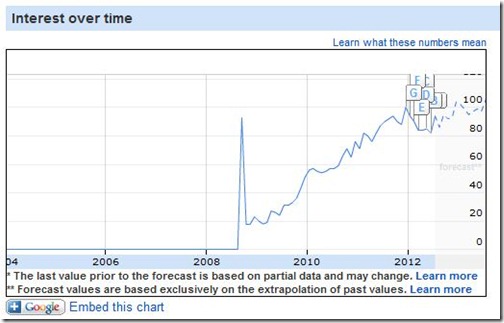
Looking back few years in Google Insight gives nice preview of the history, how  Google managed to reach among top 3 position. In earlier days we use to have one or two release of Internet Explorer in a year or two. But, now trend has changed. You now keep on getting updates automatically and don’t realize what exactly has changes ( until you are too techie and keep an eye on the chrome development).

google-chrome-google-insight

The point here is small things does matter and a smooth end user experience matters a lot to win. Although it not very critical but having an option to manage your bookmarks will definitely help a lot.

Windows 7- Disable Touchpad While Typing

This could be very annoying when you are in between typing some serious matter and suddenly the a touch on touchpad moves the cursor away or clicks something else unknowingly.  Touchfreeze is an open source utility which can be used to disable touchpad while you are typing text.

touchpad3

Download Touchfreeze – Free software to disable touchpad while typing

Share scraps from websites online without using any desktop tools

"kwout" – An innovative and easy to use way to share screens/scraps from web pages. Now a days we look for almost everything from web and many times share url’s or snaps among our friends, collagous  or relatives. Usually taking out scrap from website involves doing print screen then cut the portion you need and upload it or mail it to the target.

share-scraps

klout-output

Kwout comes here for rescue. You can easily scrap content of any particular website without using a desktop based software, Just enter the URL at Kwout and it will display an image of the target website, here you will be given some tools to take out specific portions you want to share. Just clip out the section and it is ready to be shared on facebook or twitter and almost all popular information sharing websites.  Isn’t that a better way?

Visit kwout.com for see it in action.